
SkinSniper Review (2026): Prices Inside Your Steam Tabs
Disclosure first: this is cs2stack's own blog, and we build a buying tool in the same broad space. SkinSniper isn't really our competitor — it displays prices, we execute purchases — but you deserve to know who's reviewing whom. With that on the table: SkinSniper does one narrow thing, and per its public pages, it does that thing well.
What SkinSniper is
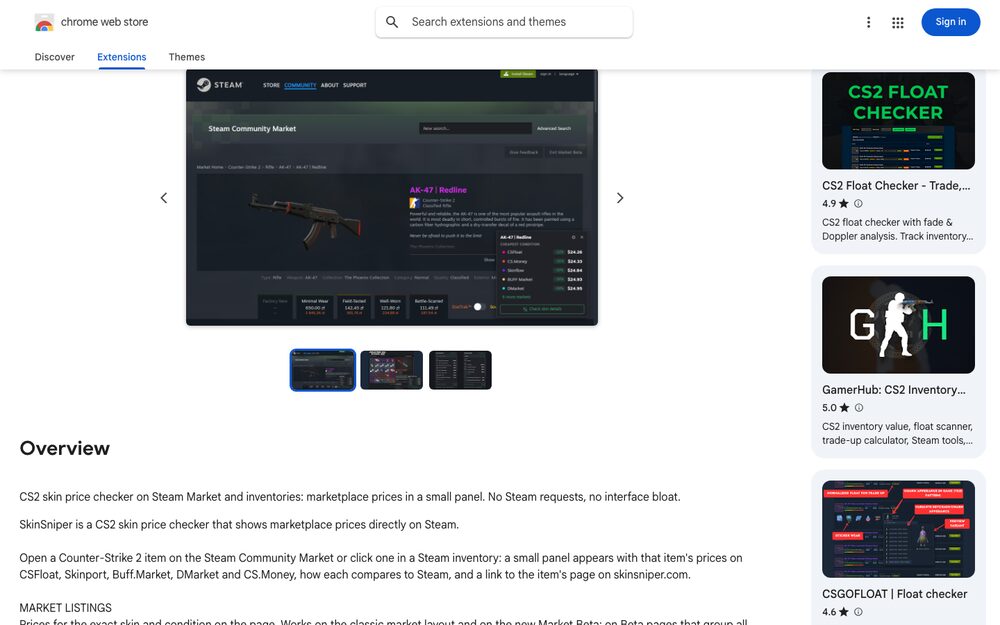
SkinSniper is a Chrome extension that overlays third-party marketplace prices directly onto Steam pages. Per its public listing, when you open an item on the Steam Community Market, the extension shows you what that same item is going for on CSFloat, Skinport, Buff.Market, DMarket and CS.Money — right there in the tab you already had open. No second window, no aggregator site, no copy-pasting item names into a search box.
That's the whole product, and the restraint is the point. If you browse skins primarily through Steam — and most players still do — SkinSniper answers the single most useful question at the exact moment you're asking it: is this Steam price actually a good price? The answer, as we've written in the cash-vs-wallet math, is usually no. Steam prices run structurally above cash-market prices because Steam wallet money can never leave the ecosystem. An overlay that makes the gap visible on every listing is a small, permanent upgrade to your judgment.
What it shows, per its public pages
Treat the specifics here as subject to change on SkinSniper's end — this is what its listing describes as of late 2026:
- Cross-market prices on Steam item pages. The lowest listing for the item on each supported venue, displayed alongside Steam's own price.
- Five supported venues. CSFloat, Skinport, Buff.Market, DMarket and CS.Money. That's a sensible spread: two P2P-leaning venues, an instant-convenience venue, and two on-site-inventory markets. (Our standalone reviews: CSFloat, Skinport, DMarket.)
- Links out. The overlay points you at the cheaper listing so you can go buy it yourself on the other site.
What you won't find, per the same pages: float-based filtering, pattern-tier intelligence, price history charts, portfolio tracking, or alerts. It's a comparison layer, not a data platform. If you want the deeper stack, that's a different tool category — we've surveyed it in the data stack of a serious skin trader.
The limit that defines it: showing is not buying
Here's the honest structural point, and it applies to every overlay extension, not just this one: surfacing a price is not the same as executing at that price.
SkinSniper can tell you a case is 30% cheaper on DMarket than on Steam. It cannot buy it for you. You still have to click through, have an account and a funded balance on that venue, and complete the checkout — by which time, for fast-moving underpriced listings, someone else's bot may have taken it. The gap between seeing a deal and owning the item is where most manual snipes die, a dynamic we've covered in how underpriced listings get caught.
That's not a flaw in SkinSniper; it's a category boundary. Extensions inform, humans or bots execute. If your goal is systematic buying — same items, standing price ceilings, no screen time — you eventually want the execution side automated too, whether via venue-native buy orders, a sniper service, or a scheduled buyer. Our alerts-vs-autobuy breakdown maps where each approach breaks.
Permissions: what to check before installing any overlay
A general note that applies to SkinSniper and every extension like it, offered as due diligence rather than accusation. To draw prices onto Steam pages, an extension necessarily needs permission to read and modify those pages. That's inherent to the job. Before installing any overlay, it's worth thirty seconds to:
- Read the permission prompt. Page access scoped to the sites it overlays is expected; broad access to all sites deserves a raised eyebrow and a look at why.
- Check the store listing's reviews and update history. Extensions change hands; an update can change behavior. A long, stable history is a good sign.
- Never let any extension near your credentials. A price overlay has no reason to ask you to log in through it, and Steam API-key hygiene matters more than most people realize — see the standard scam catalog for why compromised keys are the classic inventory-drain vector.
Nothing in SkinSniper's public listing suggests a problem; this is simply the checklist any sensible person runs on software that reads their browsing.
Who it's for
Steam-first browsers. If your skin shopping starts and ends in Steam tabs, SkinSniper meets you where you already are. That's genuinely valuable, and simpler than adopting an aggregator site.
Occasional buyers. For a few purchases a month, an overlay plus a manual click-through is the right amount of tooling. Full automation would be overkill.
Not for systematic accumulators. If you're buying the same items daily on a budget, an overlay makes you the bottleneck: you have to be looking at the tab for it to help. That's the posture difference we've written about in price monitoring vs refreshing tabs — and it's where our own tool lives, so weigh our view accordingly. cs2stack (ours) monitors DMarket and SkinBaron continuously and executes standing rules with a daily budget and hard caps; SkinSniper shows you five venues whenever you happen to look. Different jobs. Plenty of people sensibly use a display layer for browsing and an execution layer for accumulating.
Verdict
SkinSniper is a good citizen of a useful category: a free, focused overlay that makes Steam's price fiction visible on every page, per its public listing. Its ceiling is the category's ceiling — it will never buy anything for you, never watch the market while you sleep, and never enforce a budget. Install it if you browse Steam and want honest context on every price. Pair it with something that executes if you're past browsing. And whatever you install, read the permissions — that advice is free and vendor-neutral.